
Guide
Structure customer folders
Use folders to keep the files you share with customers organised, easier to understand, and easier to find again later.
Overview
Folders help customers understand what they have received and where to find it again. They are especially useful when you send different types of documents over time, such as reports, statements, agreements or policy documents.
How folders work
Use folders to organise shared documents in a way that makes sense to the customer. The sending method determines how you specify the folder.
Web send
Use the folder field on the web sending form when sharing documents.
#private
Add #folder Reports alongside
#private when sending by email.
API
Include folder information in your sending request, following the API documentation, so documents are organised automatically.
Working directly in Keepd
You can also log in to Keepd with your company account to send messages and share files. Use the same clear, customer-friendly folder names when organising shared documents.
Log in to Keepd →Example: applying a folder by email
Once #private routing is configured, include the folder instruction alongside #private in the email body.
Hello,
Please find your monthly report attached.
Kind regards,
Your Company
#private
#folder Reports
Folder names and subfolders
Put each instruction on its own line in the email body. Folder names can be plain text or enclosed in quotation marks. With an unquoted name, do not put any other text after the folder name on that line.
For a folder with spaces, use #folder "Annual Reports".
Use a slash for subfolders: #folder Reports/2026. StayPrivateMail creates the folder if it does not already exist.
#private
#folder "Annual Reports/2026"
Recommended folder names
Use simple folder names that customers will understand later. Avoid internal team names, abbreviations, or workflow labels that may not make sense to the customer.
Reports
Monthly, quarterly or annual reports.
Statements
Account statements, financial summaries or transaction records.
Agreements
Contracts, signed documents and terms.
Policies
Insurance policies, schedules and renewal documents.
What the customer sees
The document appears in the folder you specify, helping customers browse their Keepd by document type.
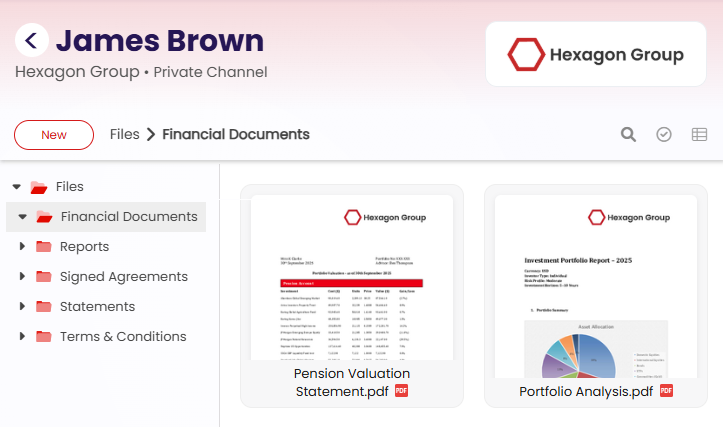
Clear folders make documents easier to find again later.
Best practices
- Use customer-friendly names rather than internal labels.
- Keep folder names short and obvious.
- Use the same folder names consistently across your team.
- Avoid creating too many folders too early.
- Choose names based on how customers will look for documents later.
Next step
Learn how to send secure emails and share files, and see what your customers receive.